Data Migration Tool in openLCA
With version 2.7.0, openLCA provides a powerful data migration tool. Hence, LCA models can be migrated from one database to another by linking them to the corresponding background data in the target database. Use cases for such a migration are:
- updating the background database, e.g., updating to a new ecoinvent version (e.g., 3.11 to 3.12)
- changing the system model of the background database, e.g., switching from the ecoinvent cutoff to the APOS ecoinvent model
- switching to a library-based or precalculated results background database to improve calculation speed
- or just migrating the model to a fresh version of the background database or another database (from ecoinvent to soca)
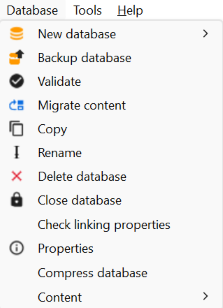
In order to use the tool, you first open the database with the product system or project you want to migrate. You can then find the tool under Database > Migrate content:
In the migration tool, you can then select the models (projects and product systems) you want to migrate. You can also select the option "Copy all foreground processes" here. Then you select a target database and strategies for how providers of product outputs and waste inputs (typically processes, but could also be pre-calculated results) will be matched in the models between the source and target database; details below. If the tool finds matching providers for one product/waste flow that is present in both databases, the corresponding process links will be updated to link to the new provider of a flow in the target database. Product or waste flows that don't exist in the target database will just be copied.
Note: There is also the possibility to migrate LCIA methods from the existing to the newer database. The migration tool focuses on linking product and waste flows to a novel provider, but the elementary flows of the foreground processes are not changed. However, if both databases share the same reference flow system, there is no need to map the elementary flows.
The linking or matching strategies for finding these providers are executed in order, as listed in the dialog. You can change that order or remove specific strategies with the context menu:
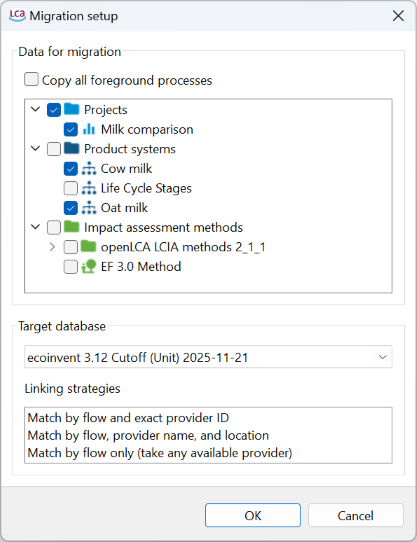
Migration strategies
Currently, the following strategies are implemented:
- "Match by flow and exact provider ID": A provider can be linked if it has a product output or waste input of the same flow (identified by ID) and also the provider ID is the same. This is useful when migrating specific models to the same version of the database or migrating to a library-based version of the background database.
- "Match by flow, provider name and location": This option has the same flow logic as above, but providers are matched by name and location. In this matching strategy, typical suffixes like "APOS" or "Cutoff" are ignored, thus, this strategy is useful when, for example, changing the system model or updating an ecoinvent database.
- "Match by flow (take any available provider)": With this strategy, any provider can be linked that has a product output or waste input with exactly the same flow.
Based on the selection, the tool will then create a migration plan and open it:
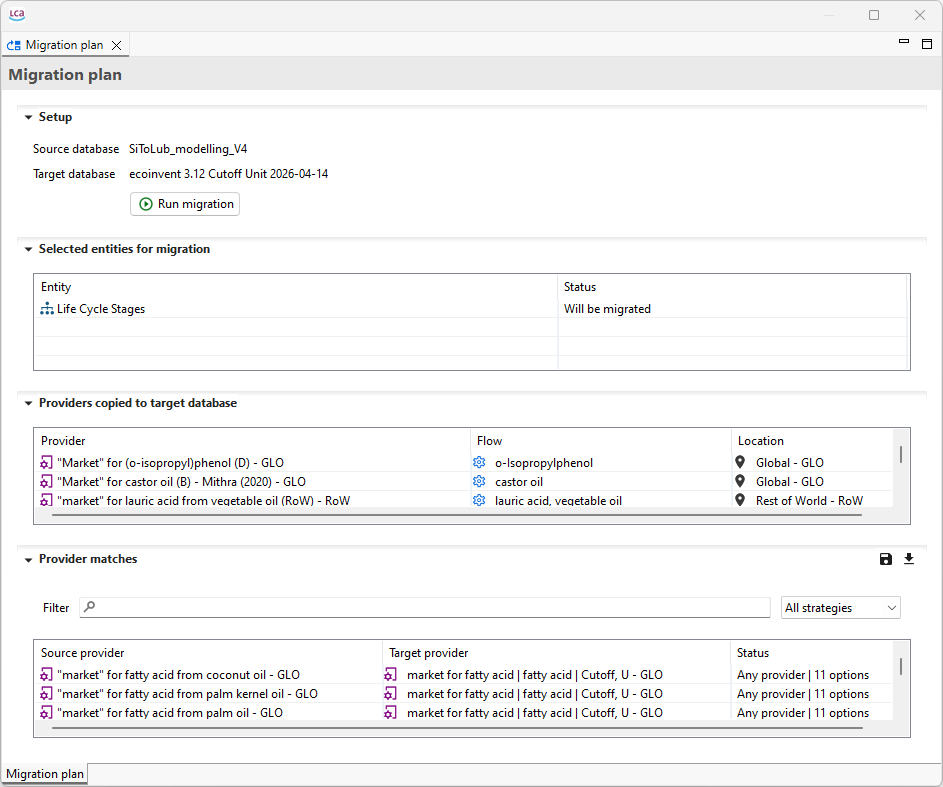
In the plan, you see the models that will be migrated and how providers will be linked. Providers that cannot be linked/matched are copied to the target database. These are typically the processes of the foreground system. For the matched providers, you see in the table "Provider matches" which provider in the source database will be replaced with which provider in the target database. In the "Status" column, you see which linking/matching strategy was applied and how many options for a possible other provider are in the target database. When there are multiple options for a matching target provider, you can change the provider mapping in the table:
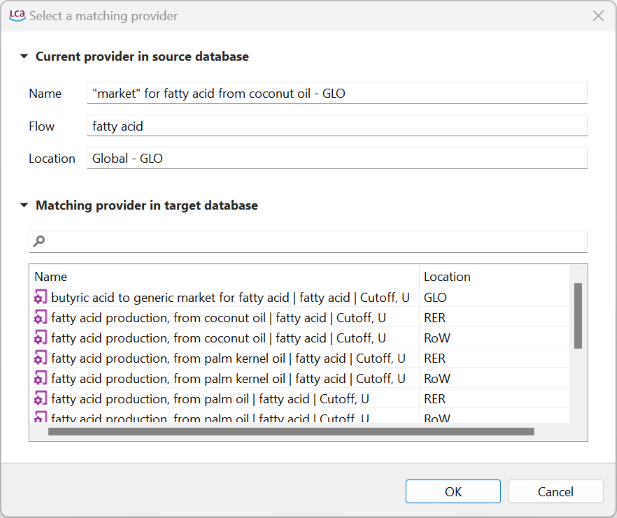
Note: For the ease of the workflow, you can filter the status of the migration per flow. This allows to focus on problematic flows.
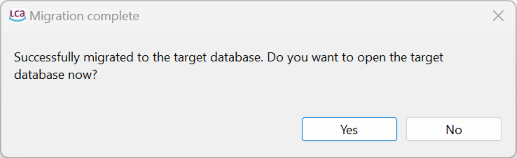
Finally, you can run the migration by pressing the "Run migration" button in the setup. After the migration, you should see this message:
Note: We allow importing and exporting flow mapping (button in the setup). Moreover, you can also copy the "Providers matched" to the clipboard to copy it, e.g., to Excel.