API clients
openLCA can connect directly to external servers and data platforms via their APIs (Application Programming Interfaces). With these API clients, you can search, import, and in some cases upload data without leaving openLCA. This gives you direct access to a growing ecosystem of LCA data, from EPD databases to agri-food data, and lets you collaborate in teams, all from within your familiar openLCA workspace. All API clients can be found under "Tools" → "API Clients"; most of them require an account and an API key or login for the respective platform.
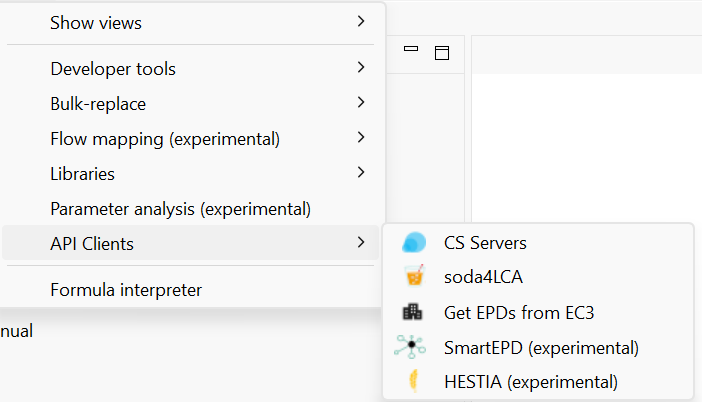
API clients in the "Tools" menu
CS Servers
The LCA Collaboration Server is a server application that complements openLCA and allows you to work on LCA models together in teams. Similar to version control in software development, users commit their changes from their local openLCA database to a shared repository on the server and fetch the changes of others. This also makes it easy to distribute reference data and to have models reviewed. Under "CS Servers", you can manage your connections to Collaboration Servers; a database is connected to a repository by right-clicking on it and choosing "Repository" → "Connect...".
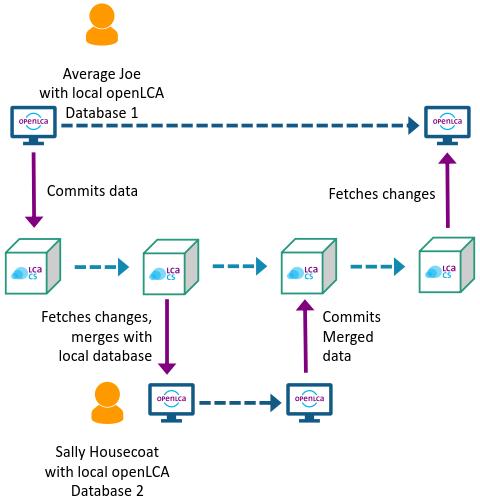
Example of two users working together via the LCA Collaboration Server
For more information, see Collaboration in Teams and the LCA Collaboration Server manual.
soda4LCA
Since openLCA 2.2, you can access a wide range of ILCD data nodes through the soda4LCA client. This includes various EPD-focused nodes, e.g. EPD International and ÖKOBAUDAT. The client can be found under "Tools" → "API Clients" → "soda4LCA". A window appears in which you can select the desired data node (host); then click "OK".
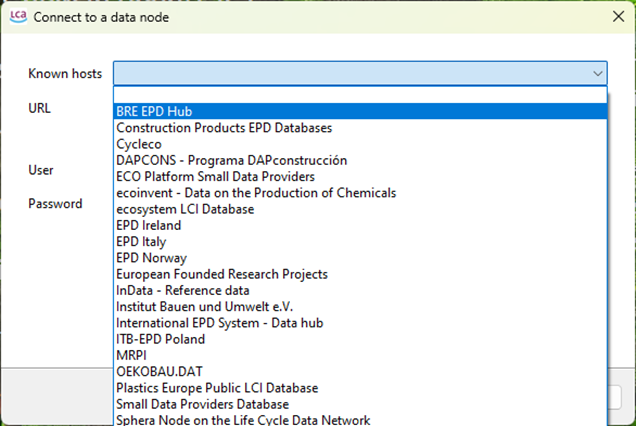
Selecting a soda4LCA data node
You can search the node for EPDs, impact categories, and more.
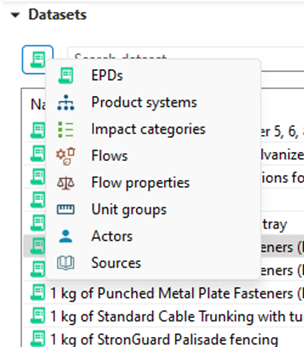
Searching a soda4LCA data node
With an active database, you can import a search result by right-clicking on it and selecting "Import selected". Imported EPDs appear in the "EPDs" folder of your database, impact categories in the "Impact categories" folder, and so on.
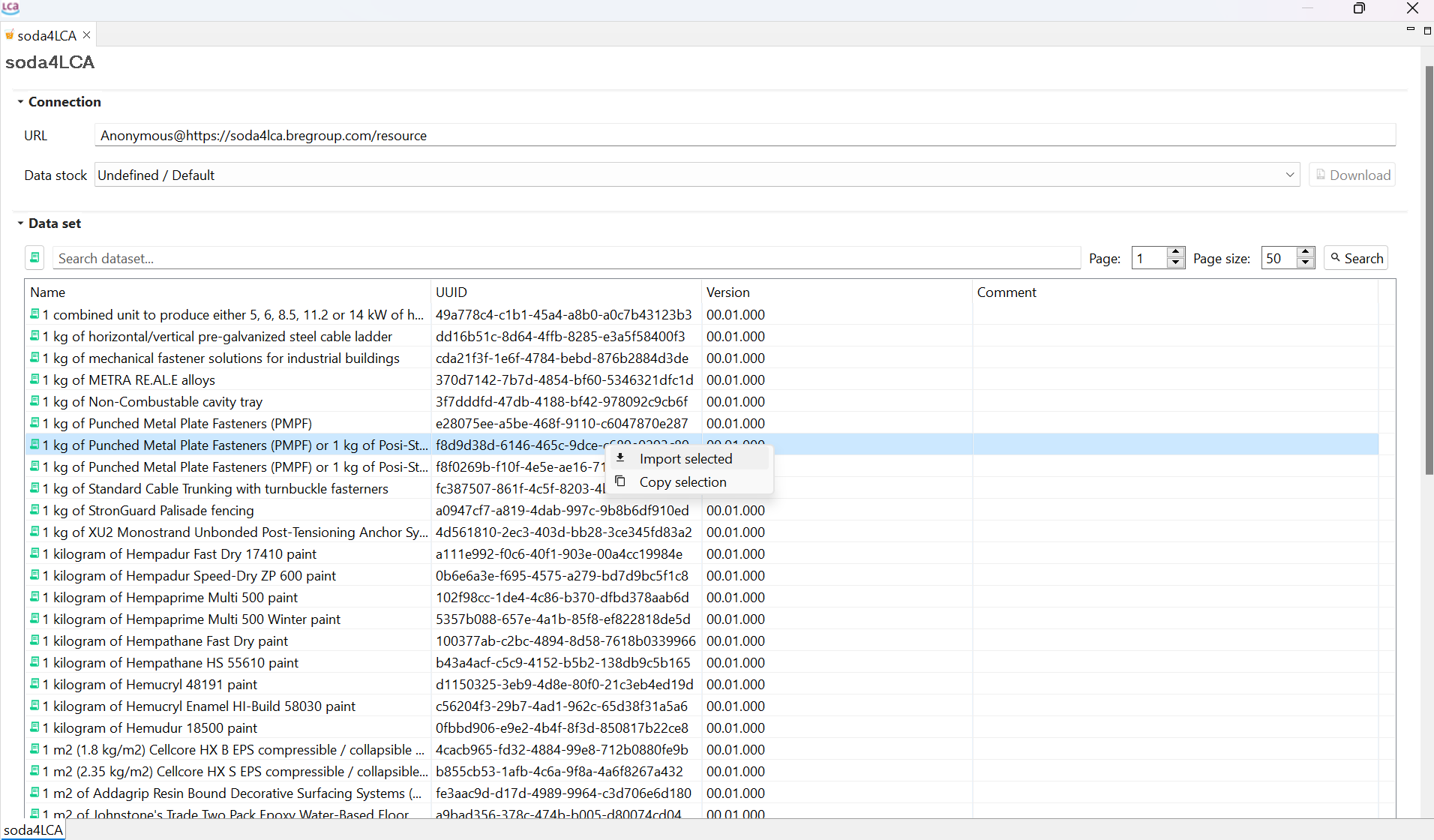
Importing a data set from a soda4LCA node
To ensure a smooth integration of EPDs, use an EN15804-compatible database like the EN15804 version of ecoinvent or the EN15804-compatible method package, which is available for free on the same page. If your active database does not contain the required impact methods, openLCA might download them from the respective soda4LCA node. This takes time and can lead to corrupted EPDs, as not all soda4LCA nodes contain the referenced indicators and flows. Also make sure to calculate impacts with the same impact method that was used to create the EPD; otherwise the impacts of the EPD will not be taken into account.
Note: To use an imported EPD result in a product system, make sure a product flow is set as the quantitative reference under "Inventory result" → "Outputs". If there is none, create a new product flow, add it to the outputs, and set it as the quantitative reference. See also Using results of EPDs in life cycle models.
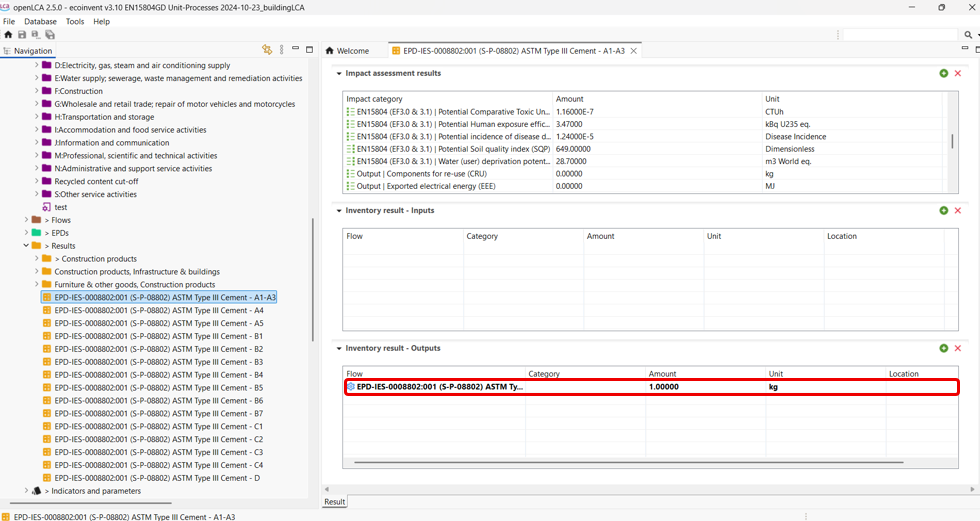
Setting a product flow as quantitative reference of an EPD result
Get EPDs from EC3
With this client, you can download EPDs from and upload EPDs to EC3 (Embodied Carbon in Construction Calculator) by Building Transparency. This requires an account, which you can create on the Building Transparency website. Go to "Tools" → "API Clients" → "Get EPDs from EC3", insert your user name, click "Login" and enter your EC3 password.
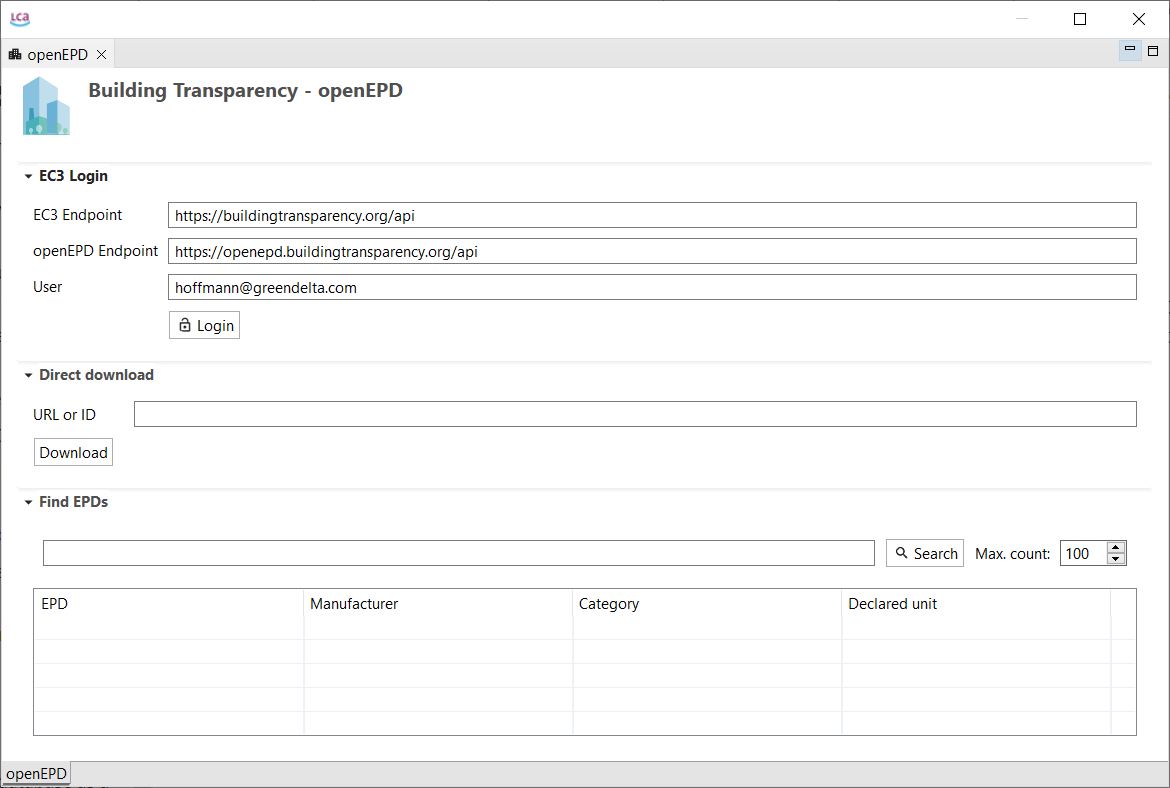
Logging in to EC3
Once you are connected, you can download EPDs via URL or ID, or search and import them directly in openLCA.
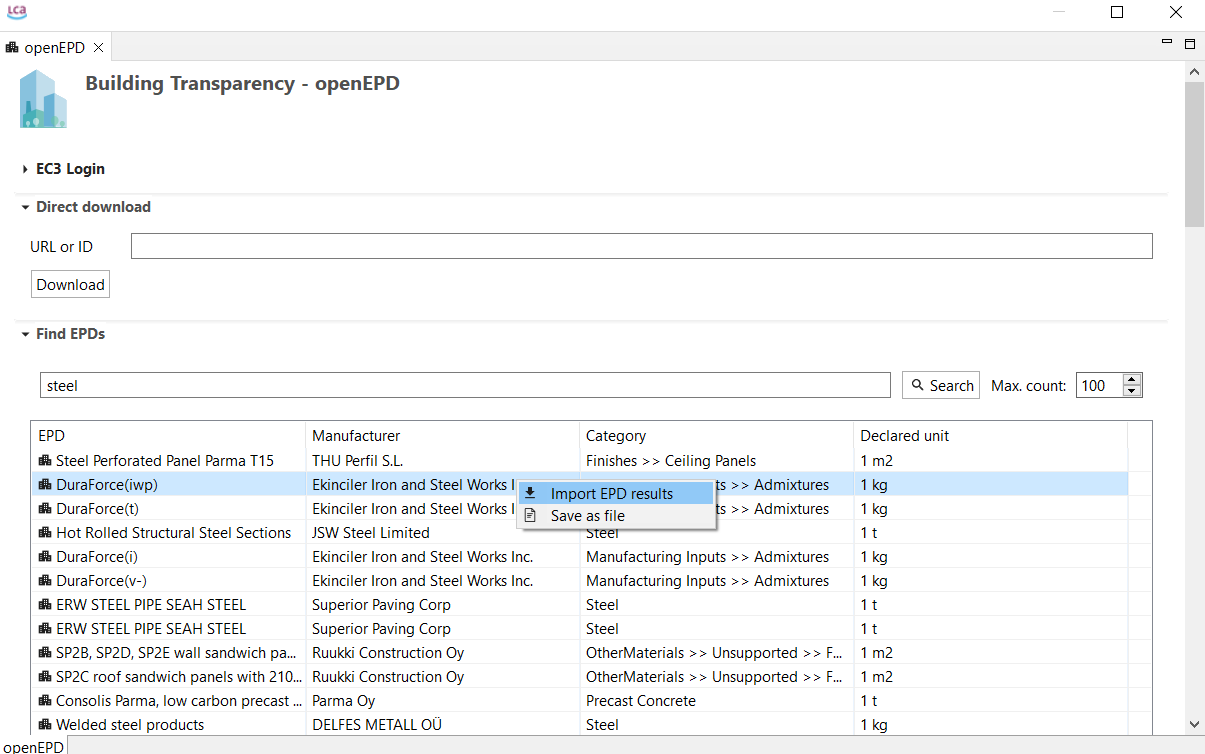
Searching EPDs on EC3
openLCA tries to match the openEPD LCIA methods with the indicators in the active database automatically, but you can also adjust this matching yourself.
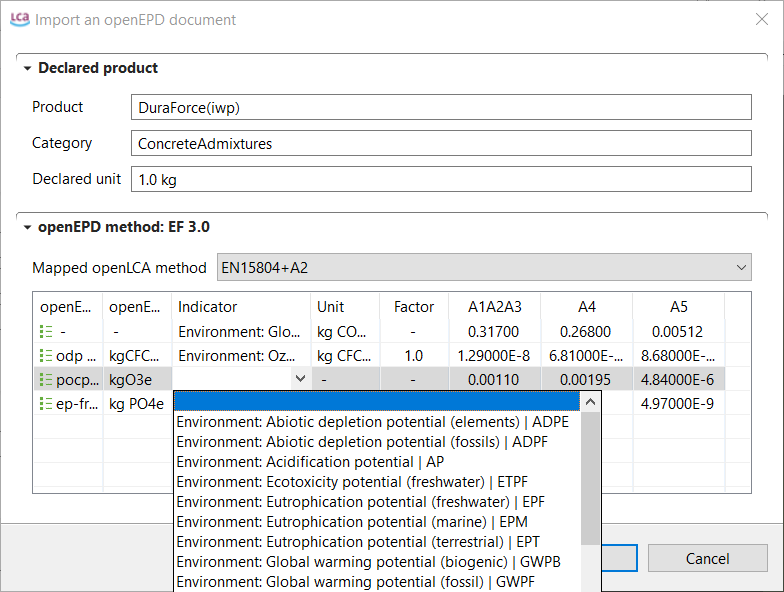
Matching the indicators during the import
The imported EPDs are displayed in the navigation window under "EPDs". An EPD can contain multiple result modules; these results are stand-alone models with a quantitative reference and can be used in product systems.
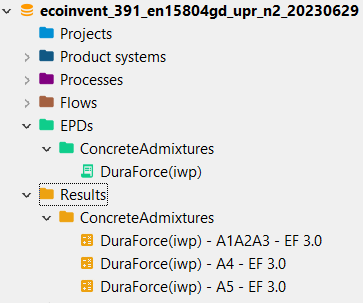
Imported EPDs in the navigation window
You can also upload your EPD drafts to EC3. Open an EPD and select "Upload (Update) EPD on results on EC3". Make sure to fill in all required information, in particular the declared product and the URN.
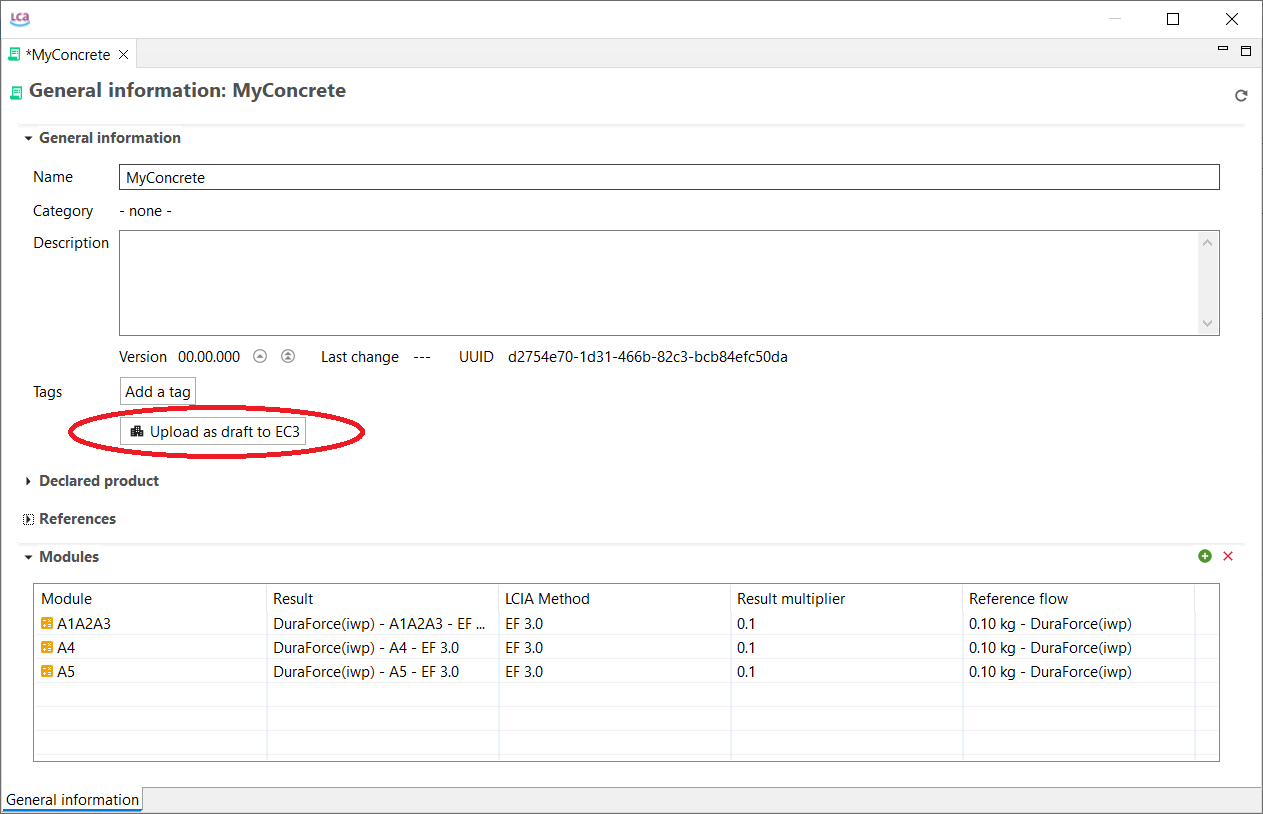
Uploading an EPD to EC3
In the window that appears, click "Upload (Update)". You can then check your uploaded version under https://buildingtransparency.org/ec3/epds/URN, replacing "URN" with your specific URN.
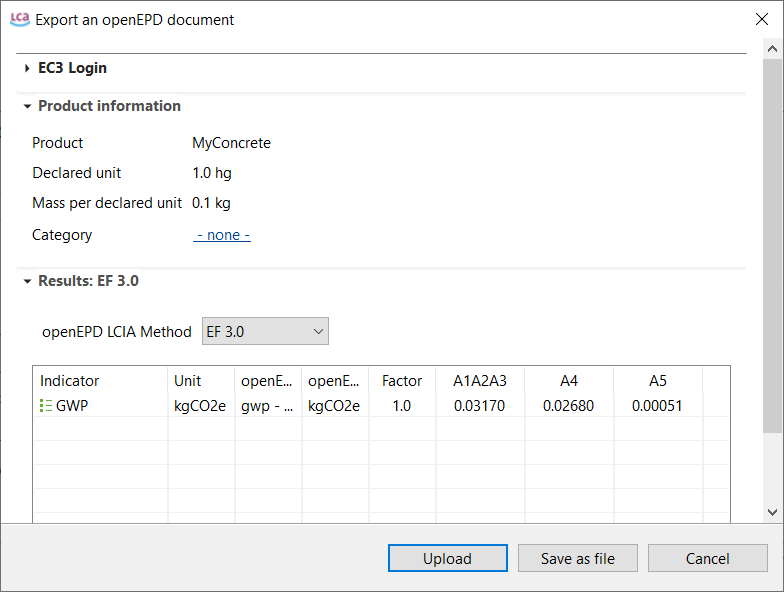
Confirming the upload
SmartEPD
Since openLCA 2.5.0, you can upload EPD results to SmartEPD. The client can be found under "Tools" → "API Clients" → "SmartEPD (experimental)". To use it, you first need to request access to SmartEPD; you then find your API key in your profile.
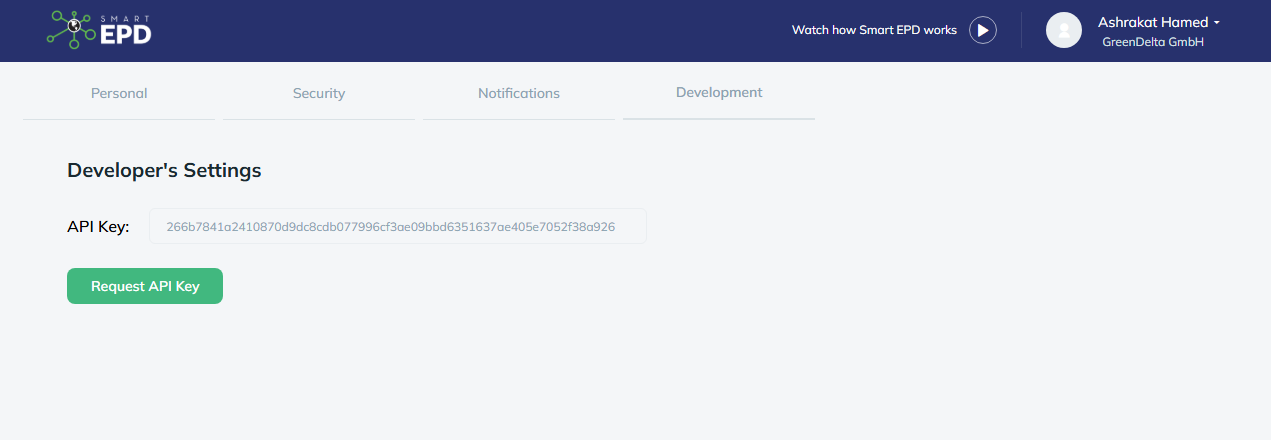
API key in the SmartEPD profile
In openLCA, open the SmartEPD client and enter the URL https://smartepd.com/api/ and your API key.
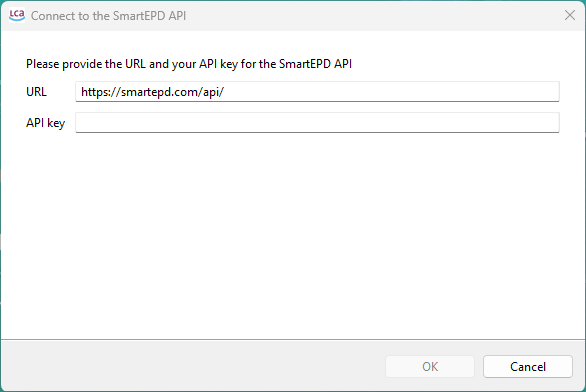
Entering the URL and API key in openLCA
A window appears showing the projects you created on the SmartEPD website, along with the EPDs in each project.
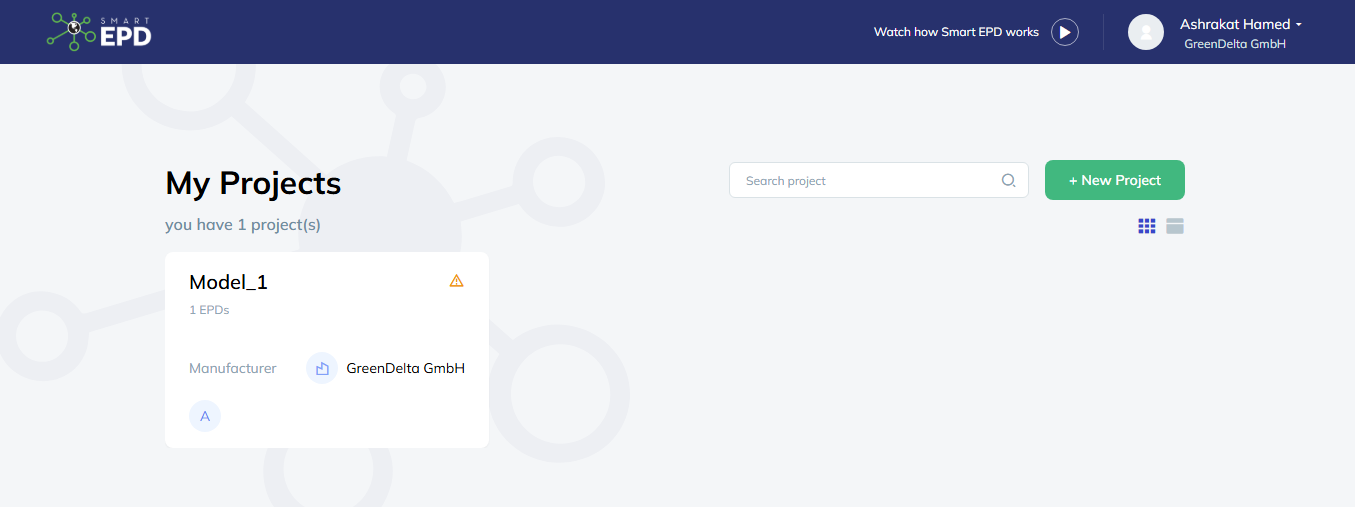
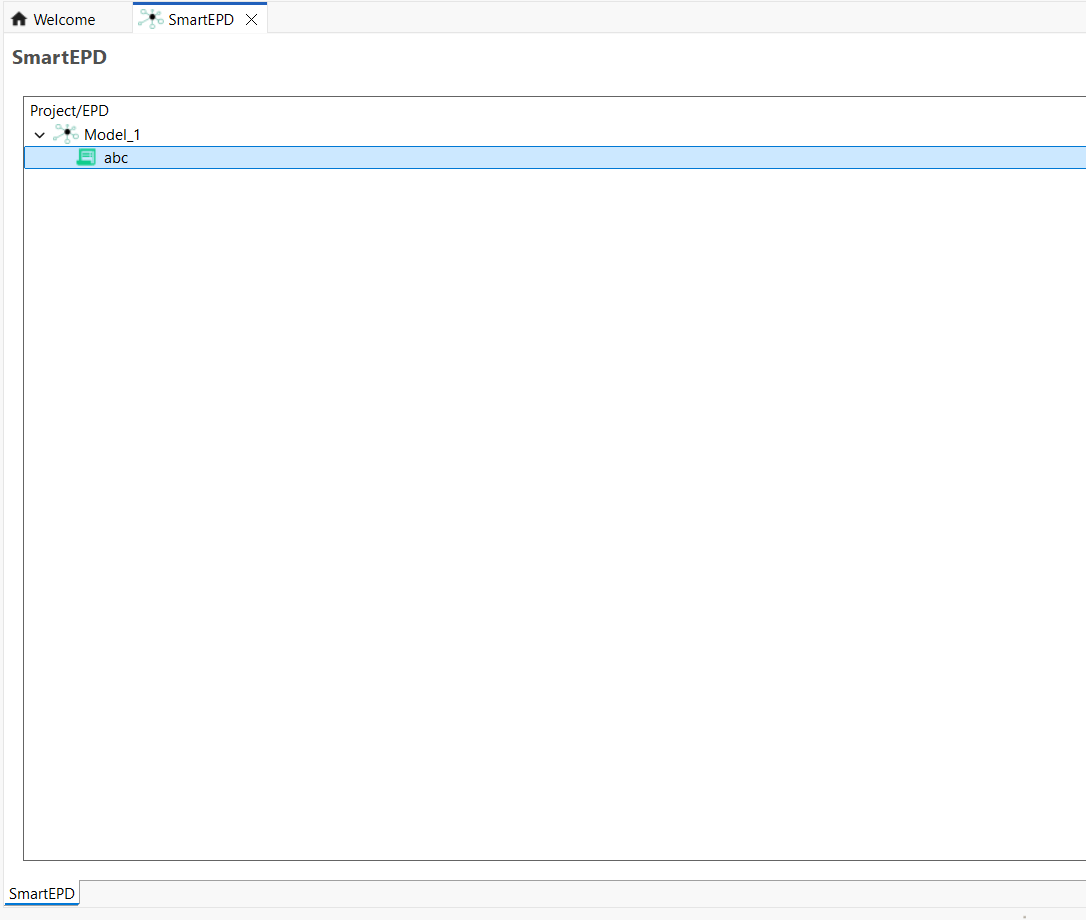
Projects and EPDs from SmartEPD in openLCA
To upload EPD results from your database, right-click on the EPD icon in the SmartEPD window. In the pop-up window, select the EPD and the results you want to upload. You can then review the uploaded results in your project on the SmartEPD website under "Results".
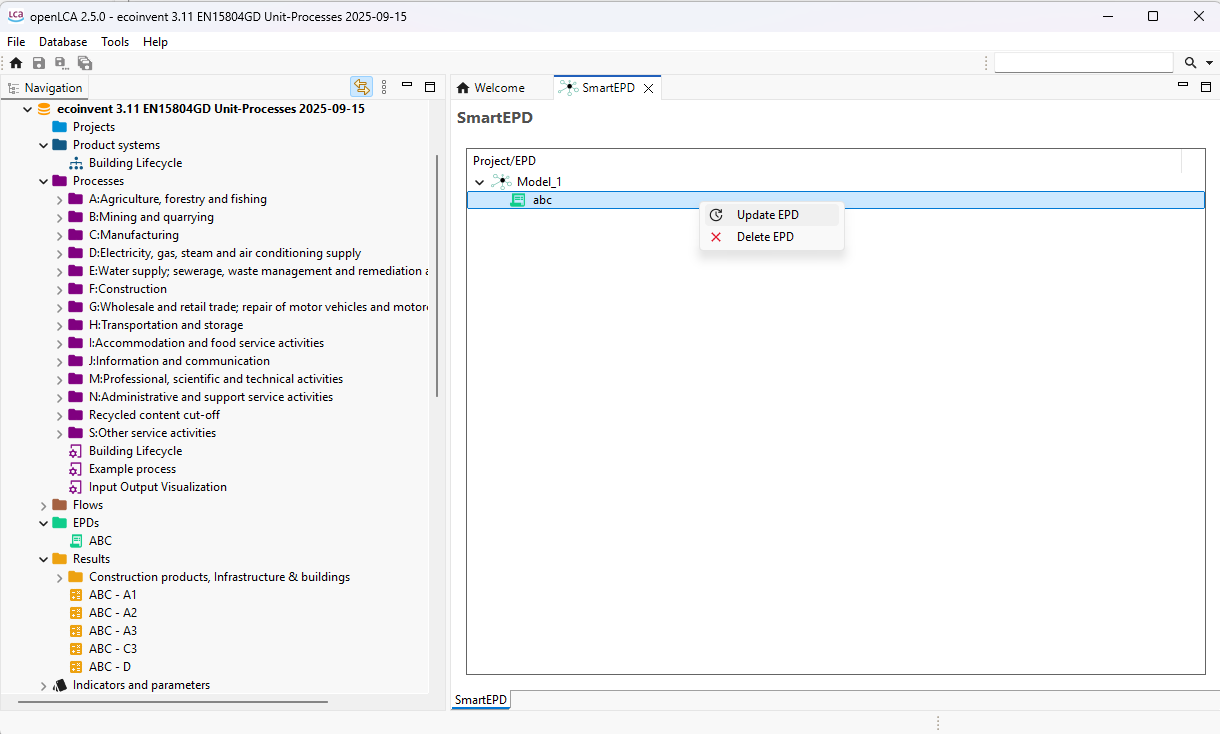
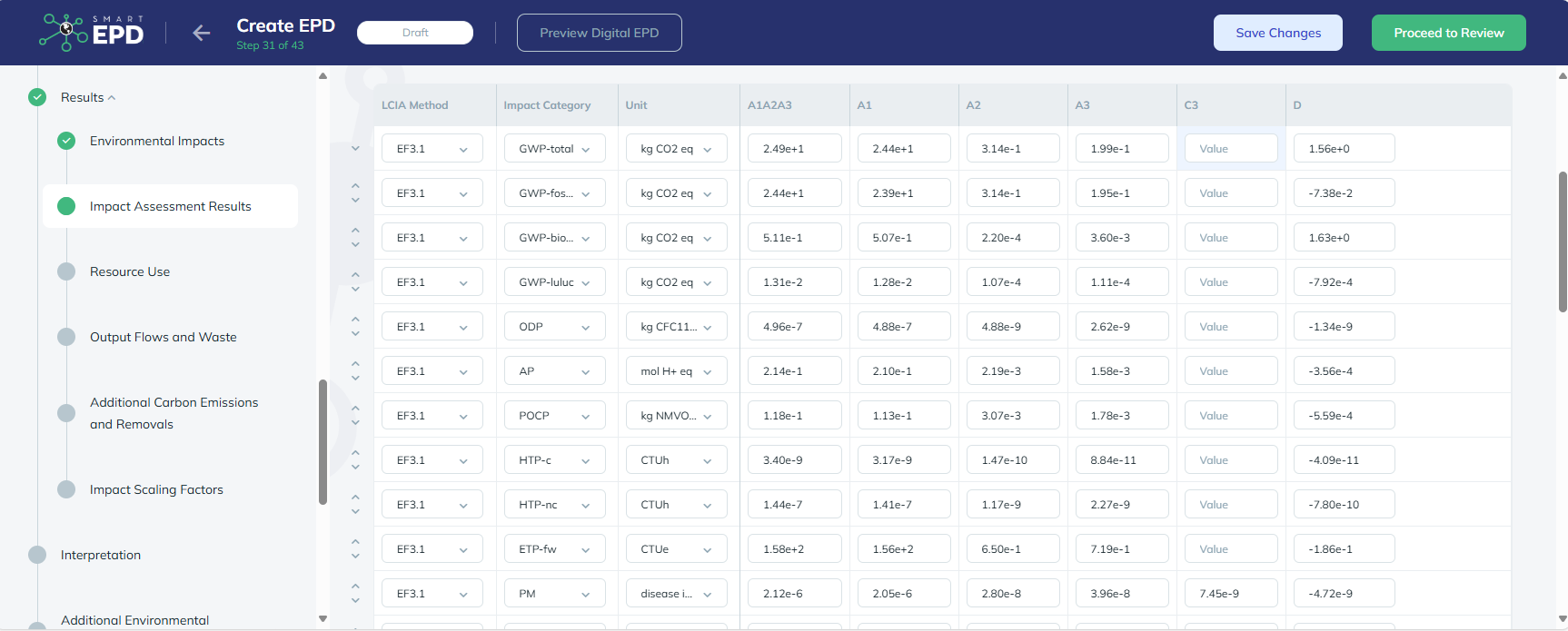
Uploading EPD results to SmartEPD
Note: Currently, you can only upload results to SmartEPD; importing EPDs from SmartEPD is not possible.
HESTIA
HESTIA is an online platform providing agri-food data, such as data on crop and livestock production. Since openLCA 2.6.0, you can search the HESTIA datasets directly in openLCA and import them as process datasets into your active database. The HESTIA API client can be found under "Tools" → "API Clients" → "Hestia (experimental)". As indicated in the menu, it is still an experimental feature.
Connecting to HESTIA
When you open the API client for the first time, you need to enter your API key. You can find it in your user account on the HESTIA platform, under "Settings" → "API Access".
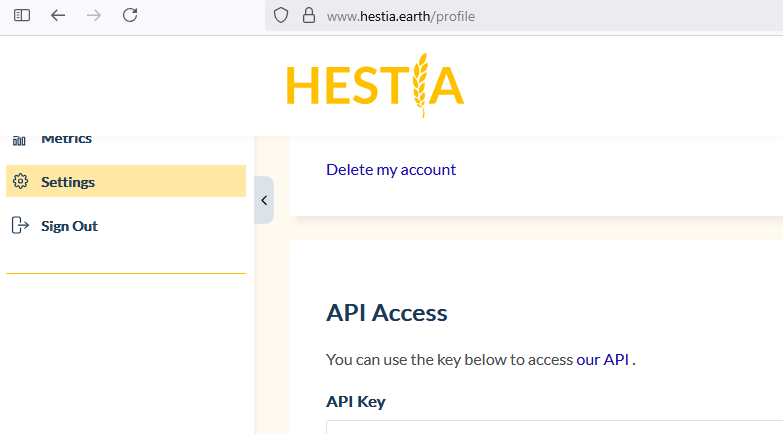
API key in the user account on the HESTIA platform
Enter the API key in openLCA. If you select "Save API key", the key is stored in the openLCA workspace, so you do not have to enter it again.
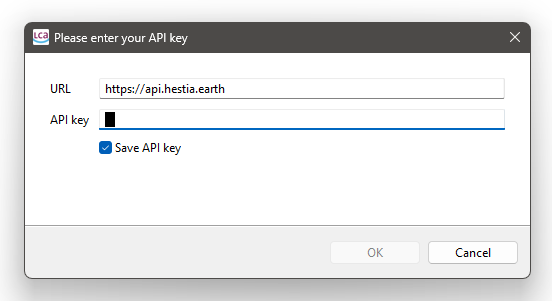
Entering the API key in openLCA
Searching and importing datasets
You can now search for datasets on the HESTIA platform directly in openLCA. Enter a search term and click "Search". With the checkbox "Search aggregated data sets", you can decide whether aggregated datasets are included in the search, and with "Number of results" you can limit how many results are shown.
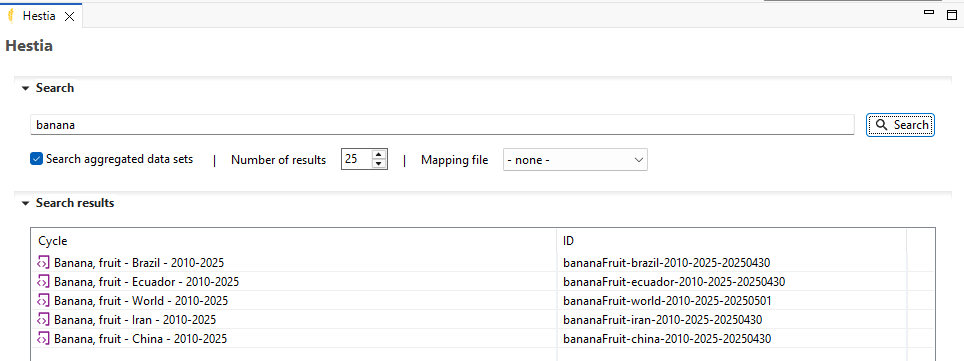
Searching for HESTIA datasets in openLCA
Right-click on a search result to open the following options:
- Show cycle: opens the original HESTIA dataset in a preview window, so you can check it before importing.
- Import selected: imports the dataset as a process into the currently active database.
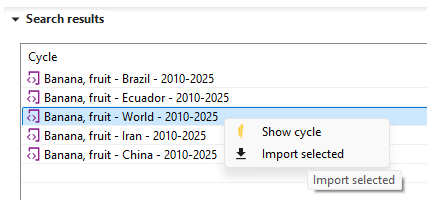
Options for a search result
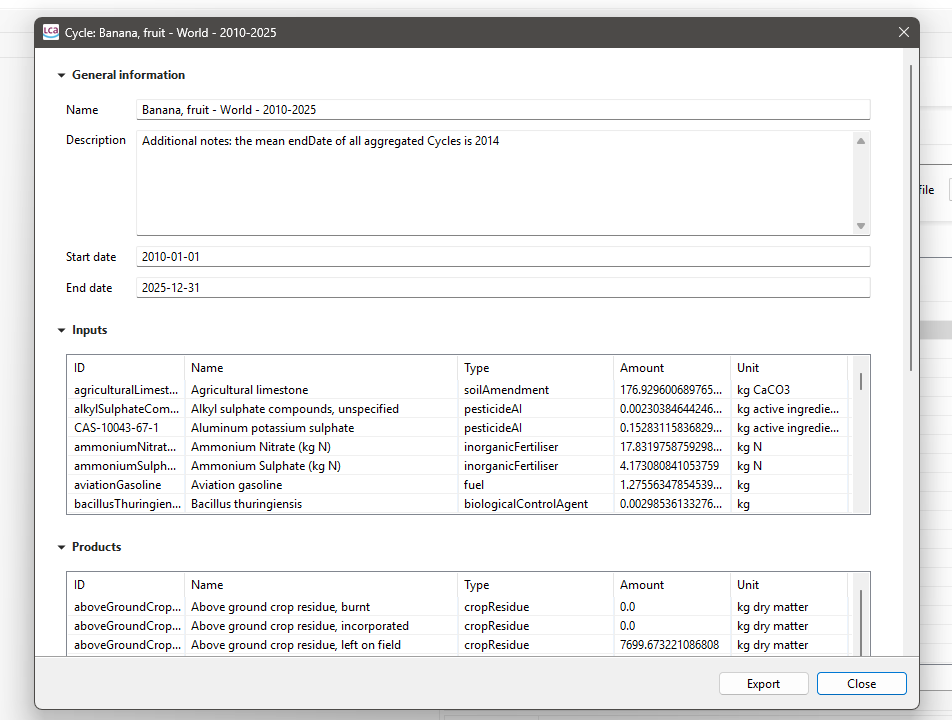
Preview of a HESTIA dataset
Using a mapping file
For the import, it is recommended to use a mapping file that maps the HESTIA flows to the openLCA reference flows. We provide a mapping file derived from the Python HESTIA to openLCA converter. It is a simple CSV file in the openLCA flow mapping format and can be imported into your database via the normal file import: right-click on the database and choose "Import" → "File".
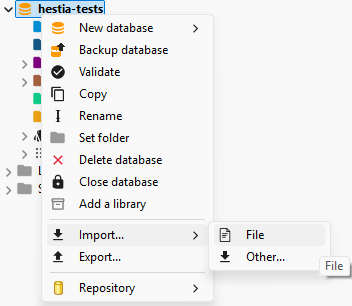
Importing the mapping file into the database
After the import, the mapping file is listed in the navigation window under "Background data" → "Mapping files".
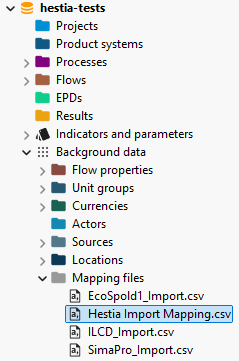
The imported mapping file in the navigation window
You can then select the mapping file under "Mapping file" in the HESTIA API client; it is applied to all datasets you import.
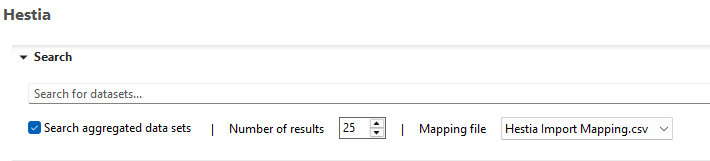
Selecting the mapping file in the HESTIA API client
Note: You may have to re-open the API client after importing the mapping file before it can be selected. Also, only the mapping files of the currently active database are shown, which is the database the datasets are imported into.
Extending the mapping file
The mapping file can easily be extended by editing the CSV file. Make sure to keep the format, with semicolons as column separators. Besides flows, you can also define providers for product inputs. As the flow ID, use the original ID of the respective HESTIA term. You can find it as the end of the URL in the description field of an imported flow:
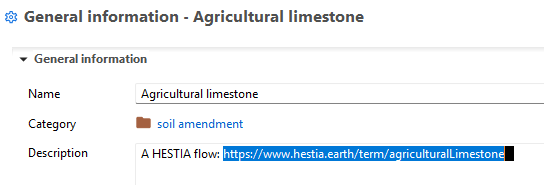
The HESTIA term ID at the end of the URL in the flow description
Example of an imported process
The following figure shows an example of a HESTIA dataset imported as a process in openLCA:
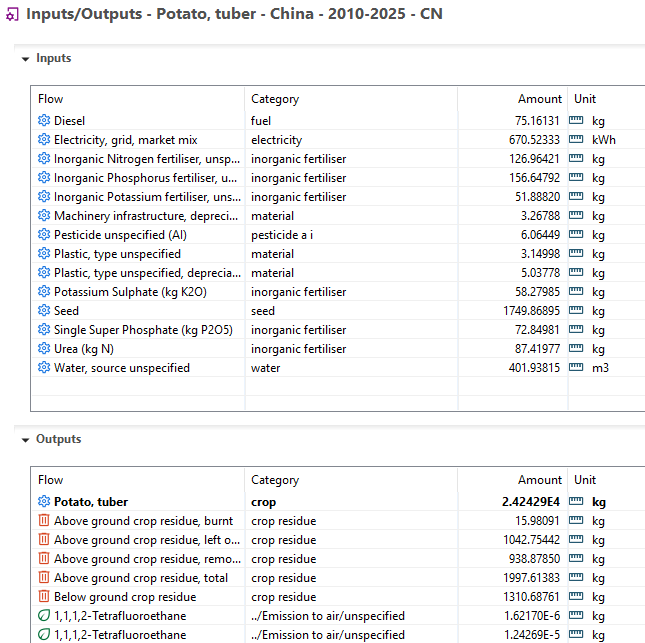
Inputs and outputs of an imported HESTIA dataset
Import errors
If errors occur during the import, the "Import finished" dialog shows how many datasets were affected. Click "Details..." to see what went wrong.
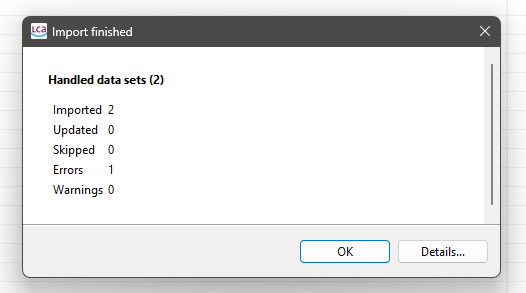
Summary of the import with the option to show error details
Note: The HESTIA API client currently has some limitations. Aggregated datasets often contain the same emission several times as separate outputs, and practices from HESTIA are not yet mapped to exchanges in openLCA. In addition, further flow information available via the HESTIA API is not yet used in the import; for example, HESTIA flows already include a mapping to ecoinvent flows (see e.g. this flow).