Current implementation of system dynamics in openLCA
System dynamics allows to model non-linear behaviour of complex systems over time using stocks, flows, and feedback loops. It makes it possible to model product systems in broader system surroundings and further define dynamic relationships of system variables. In openLCA you can now link your LCA models to system dynamics models, making it possible to calculate dynamic impact results over time.
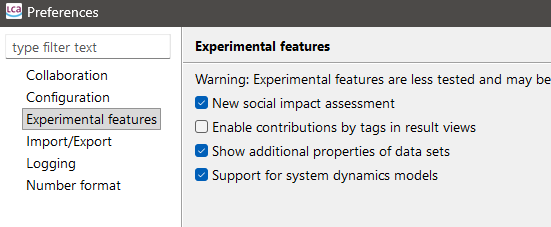
First, you need to enable "Support for system dynamics models" in the preferences (do not forget to press "Apply" or "Apply & Close" in that dialog):
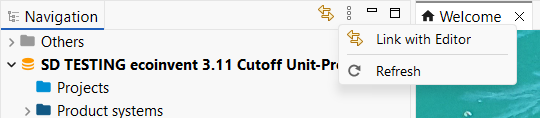
Then, refresh the navigation via F5 or the refresh button:
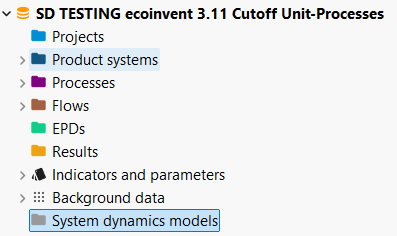
You should see a folder "System dynamics models" in your database folders now:
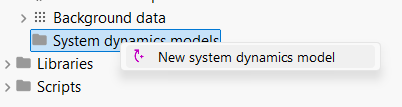
Right click to create a new model or import a model:
Creating a new system dynamics model
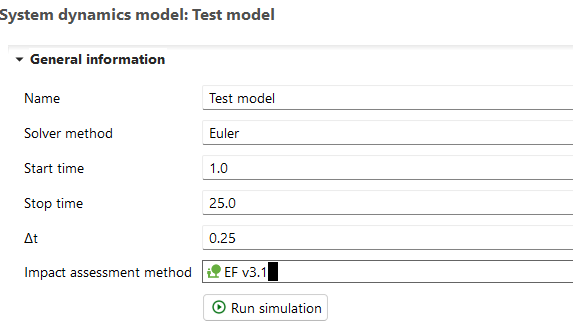
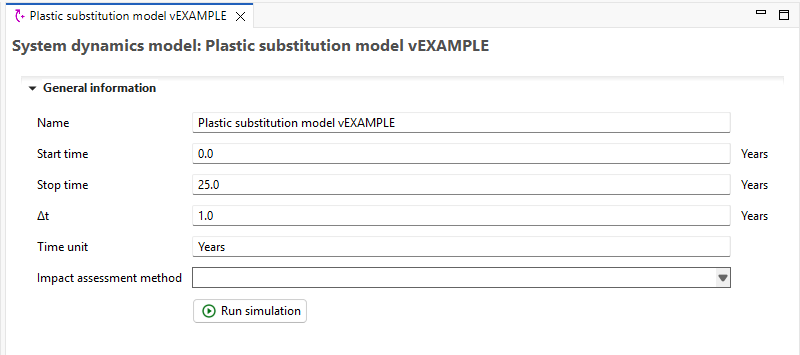
When creating a new model, general information that can be defined includes the name, the start and stop time as well as the time steps, the time unit, and the impact assessment method. The defined time settings are specifications used for the simulation runs. The impact assessment method is for calculating the impacts at each time step. After the model has been created, these settings can be still changed in the “Calculation setup” tab of the system dynamics model editor window.
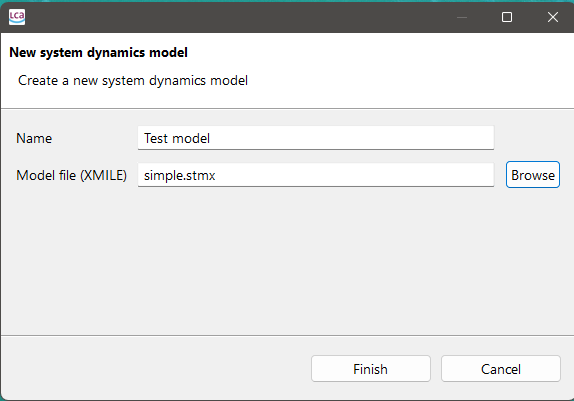
Importing a system dynamics model
The imported models need to be in the standard XMILE system dynamics format. A pop-up window allows you to select a file in your file directory and import it directly.
System dynamics modelling
When opening your system dynamics model, the model editor will show a graphical representation of your model in the tab “Model” and the defined calculation settings in the tab “Calculation setup”.
If you imported an existing model, it will show this model in the “Model” tab.
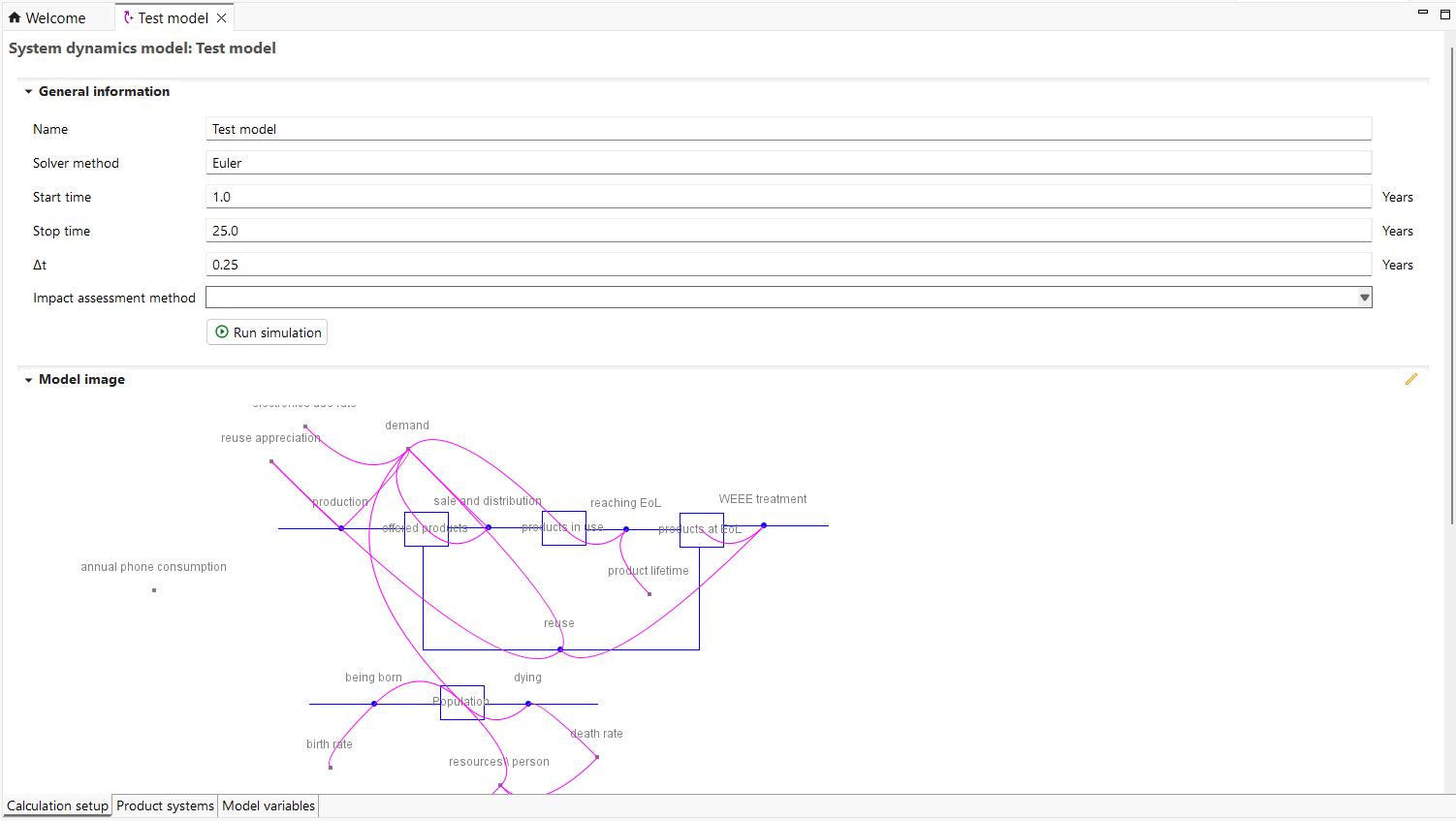
This model can then be edited by right clicking on a blank area of the model to add new elements or by right clicking on existing elements to edit or delete these elements.
When creating a new system dynamics model, the page will be blank. To add elements to your model, right click and choose the element you would like to add. Options are “Add stock”, “Add rate”, “Add auxiliary”, and “Add product system”.
The elements have the following shapes in the graphical editor:
The system dynamics elements are defined as follows:
- Stocks: are accumulations or state variables in a system that represent quantities at a given point in time (e.g., population, inventory, or savings). They change only through flows.
- Flows: are the rates at which stocks increase or decrease over time (e.g., births, sales, or withdrawals). They determine how stocks evolve.
- Auxiliary: are intermediate variables used to calculate flows or provide additional logic and relationships in the model (e.g., birth rate, demand factor, or policy settings). They do not accumulate over time themselves.
When adding a stock, a pop-up window appears to define name, unit, whether the stock is a non-negative, input and output flows, the type, and finally values or an equation. Input and output flows can be added or remove by right clicking on the adjoining boxes. Only flows that exist in the model can be selected.
When selecting the type there are 3 options.
The equation type allows you to either enter a value or define an equation. An equation can consist of constants but also elements of your model as variables.
Common system dynamics functions can also be used. The implementation in openLCA is guided by the XMILE Standard. More information on the standard can be found here. A list of the supported functions for the system dynamics implementation in openLCA can be found here.
When selecting the Lookup function type, several ways of how y-values are estimated can be selected:
- Linear interpolation: Draw a straight line between known points.
- Linear extrapolation: Continue a straight line beyond the known points.
- Discrete (next lower): Use the closest lower entry from the table.
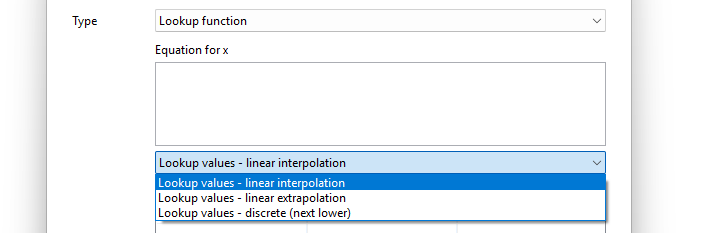
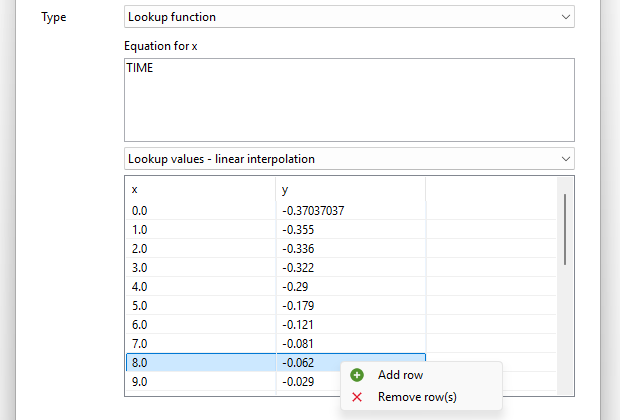
The equation for x can be anything that evaluates to a number. Right click on the Lookup table to add or delete rows.
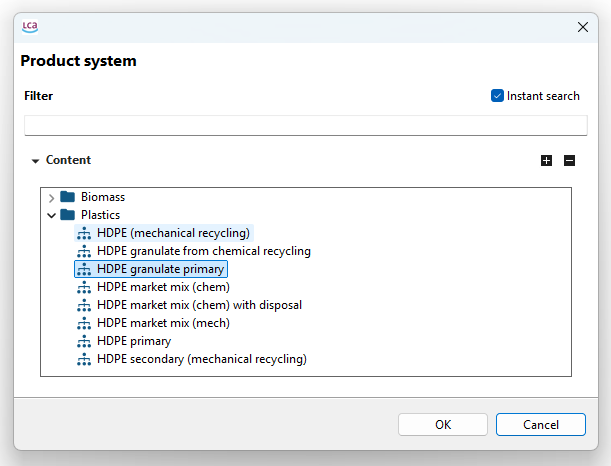
When adding flows or auxiliaries to your model these can be edited similar to stocks. Adding product systems on the other hand requires you first to select existing a product system in your database.
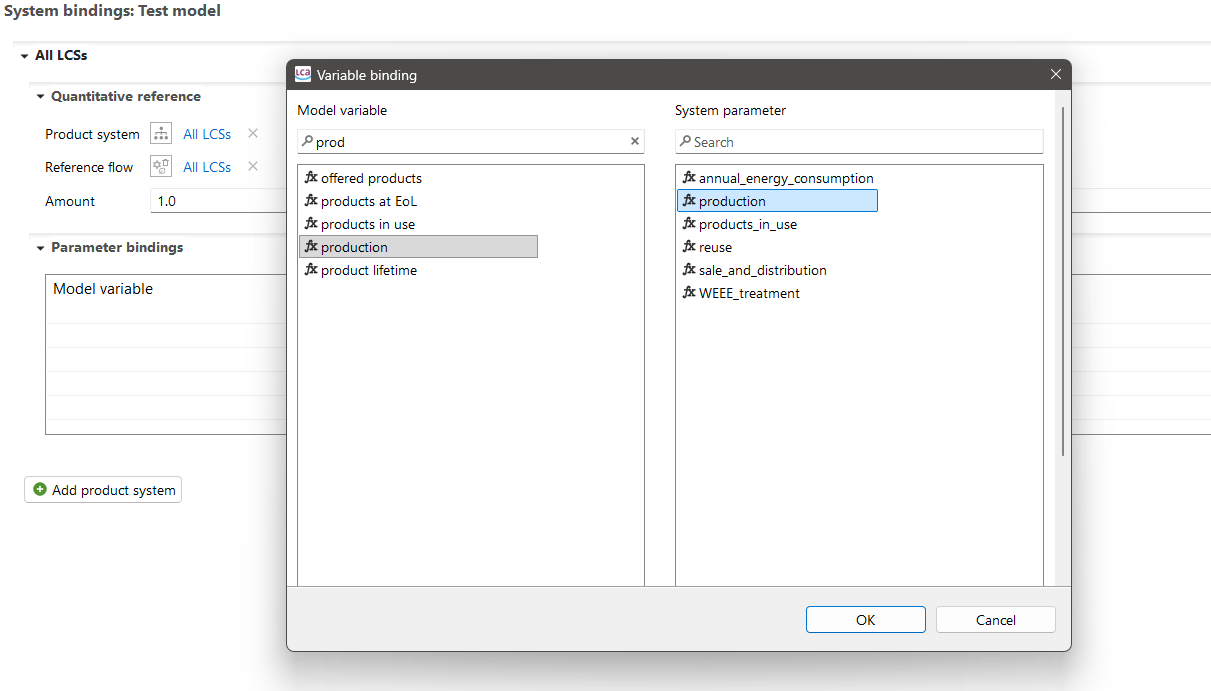
In a second step, system dynamics variables (stocks, flows, auxiliaries) can be linked to your selected product system. The variable can be selected to overwrite your reference amount of the linked product system.
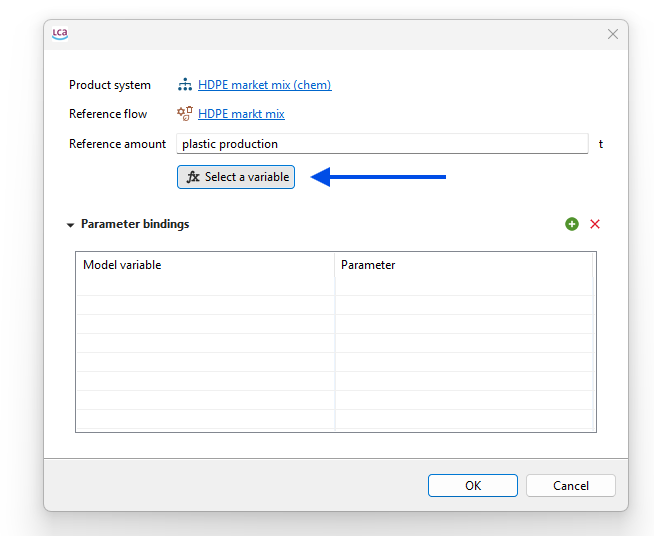
Or parameters used in your product system.
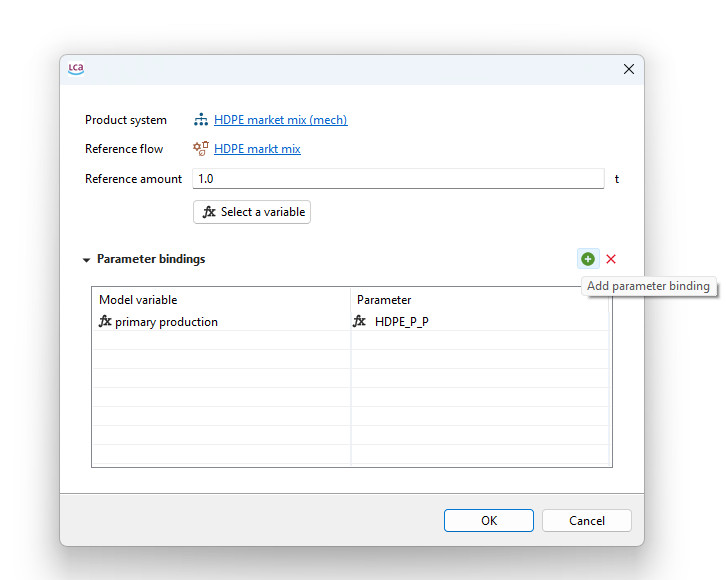
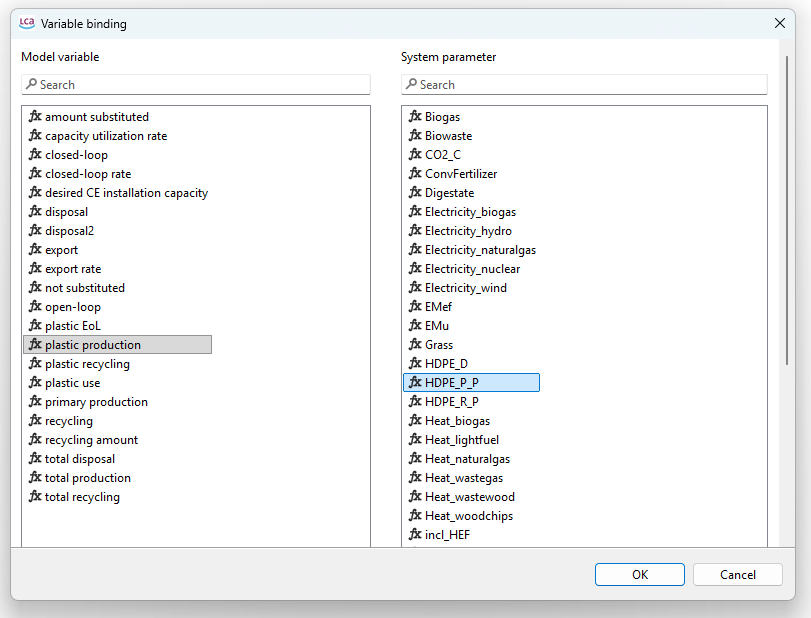
During the simulation, the system dynamics model variable values calculated at each time step will overwrite the linked parameter values in your selected product system. This occurs in each iteration of the defined timeframe, thereby producing change parameter values over time and therefore, changing product system results over time.
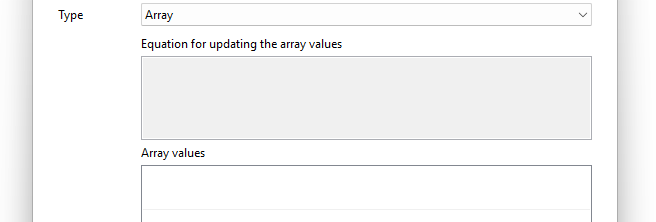
A further variable type is an array. Currently these cannot be edited and only be shown in imported models that include arrays.
Running system dynamics models
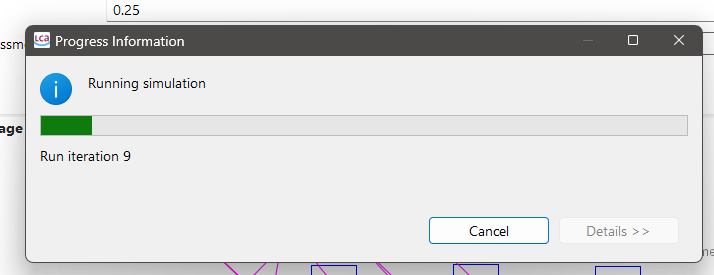
You can run the model with “Run simulation” in the calculation setup tab.
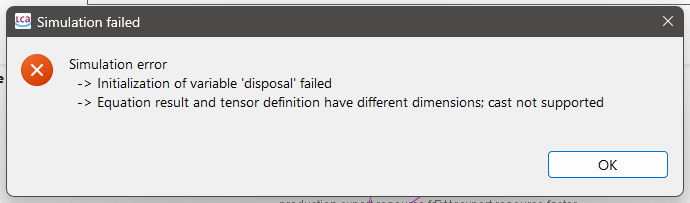
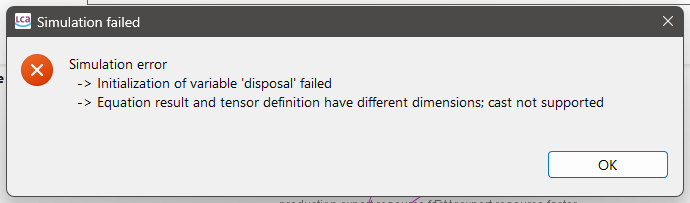
You should always test the model first before trying to link it to an LCA model, as not all features of your system dynamics software may be supported yet. You will get an error message if the model is not supported:
If you are only interested in the system dynamics results, you can run the model without having linked product systems or selected an impact assessment method. Otherwise you can select an impact assessment method and run the simulation.
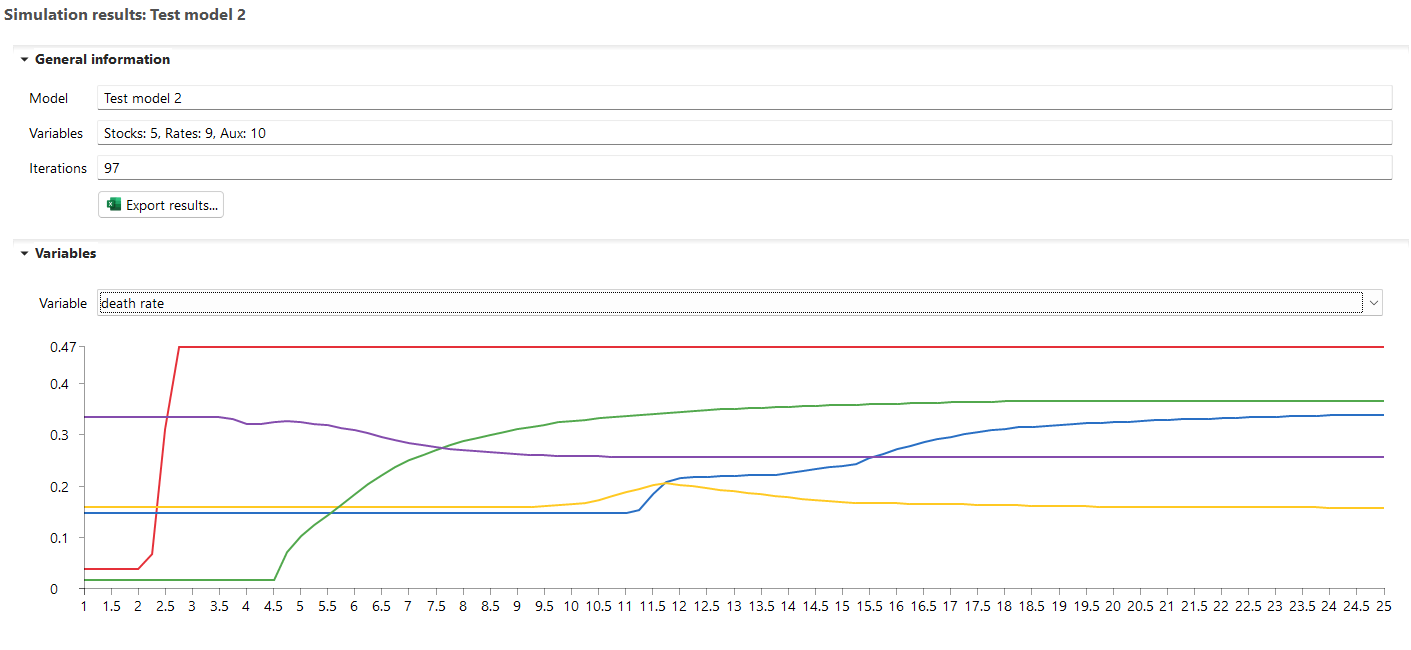
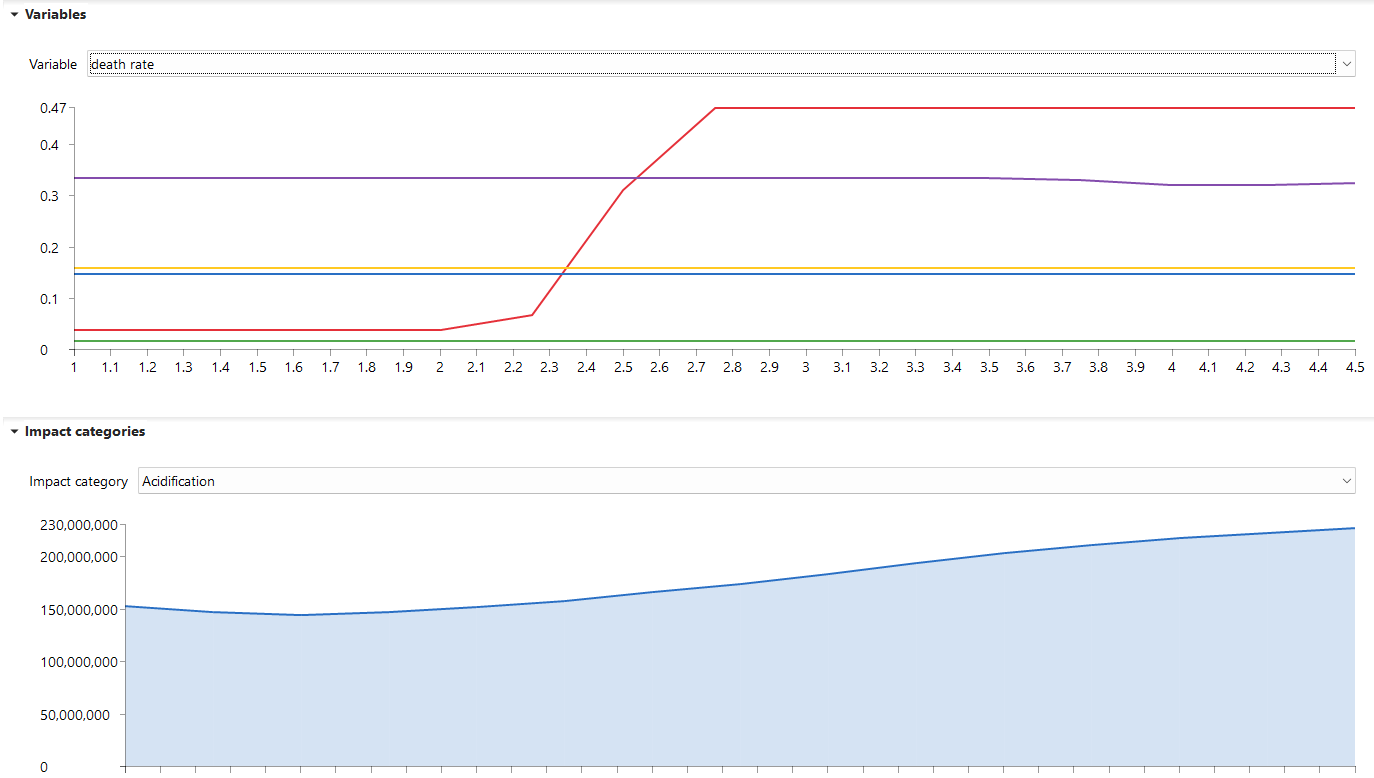
You will then get LCIA results for each simulation step with the corresponding model variables.
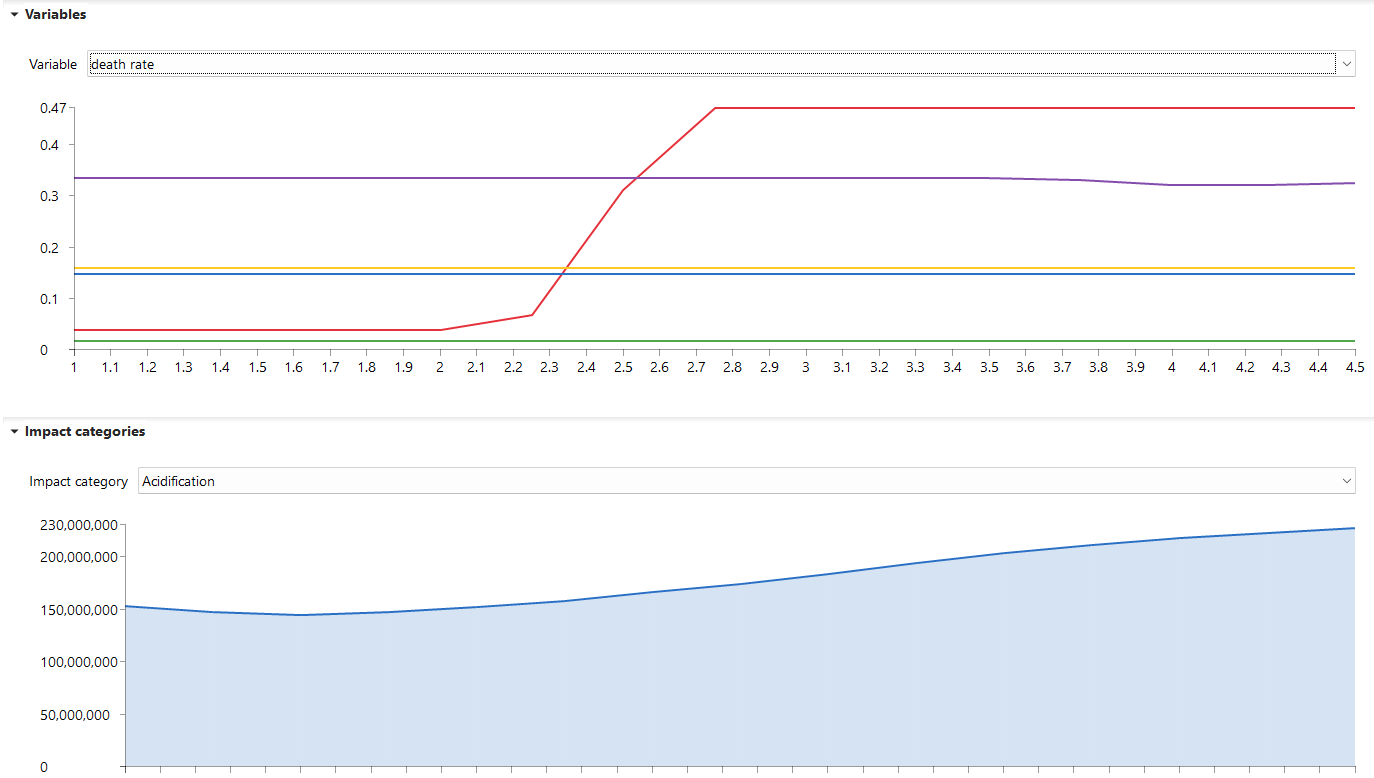
Results can then be exported to excel.